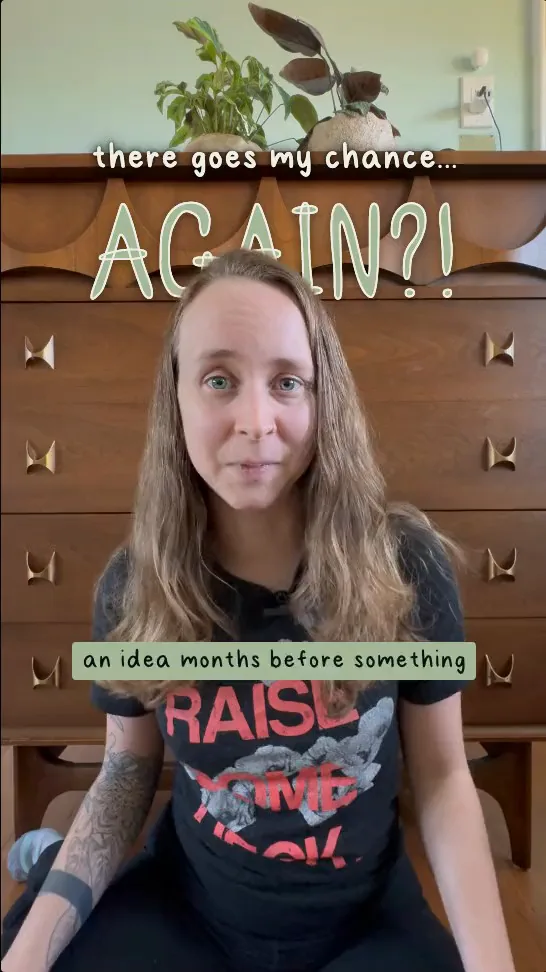
Open Captions on the left rail and click a style. There are 14 built-in looks, and your brand kit’s own styles come first if you have one.
Choose Captions on the left rail.
Click a style. Each is drawn as it will look on your reel. Its settings open in the right panel.
Use the Show captions switch to turn captions on or off.
Screenshot coming soon
The Captions panel.
The 14 looks
One word
One word at a time at chest height (the default)
Subtitle
Two smaller lines low on the screen
Plain
One clean line
Marker
One line on a bright box, dark text
Boxed
One line on a dark see-through box
Highlight
The word being said is in a color
Karaoke
Words light up as they are said
Pill
A pill slides to the word being said
Word pop
All caps and outlined; the spoken word pops in a color
Big word
One large word in the middle, all caps
Fade
Words fade in as they are said
Big lines
Two large lines
Emphasis
Small words, with key words big in a color
Stacked
Words stack up one to a line as they are said
Each look will play here as a short loop. Clips coming soon.
Or ask your agent
You
Use the Karaoke look, a bit bigger, and put the key words on their own line.
Emphasize key words
Double-click a caption word on the preview, or select words in the Transcript and choose Emphasize. Emphasized words get bigger and take the emphasis color.
Double-click a word in the captions on the preview, or select words in the Transcript.
Choose Emphasize in the bar above them. Choose Remove emphasis to undo it.
Clip coming soon
Emphasizing a word.
Fine-tune
In the right panel, the Emphasis section has Emphasize words, Emphasis size, Emphasis color, Blur in (each word comes in from a blur) and On its own line.
Change how captions look
Click the captions on the preview for a floating toolbar (font, weight, color, size, box, outline, shadow), or open the Captions page in the right panel for every setting.
Click the captions on the preview. A toolbar appears over them: Font, Weight, Text color, Size, Box, Outline, Shadow, then More.
Choose More to open the full page: text, how the spoken word is marked (None, Color, Pill, Karaoke, Pop, Fade), effects and emphasis.
Select caption words to style single words: the word toolbar can change a word’s font, color, size, box, outline or shadow, and Clear word styles.
How the spoken word is marked
None
Every word the same
Color
The word being said takes a color
Pill
A pill slides to the word being said
Karaoke
Words light up as they are said
Pop
The word being said pops
Fade
Words fade in as they are said
Each look will play here as a short loop. Clips coming soon.
Screenshot coming soon
The caption toolbar.
Keep a style for next time
At the bottom of the Captions page, choose Save to brand. Pick a brand kit (or make one), name the style and choose Save. You can update an existing style or save a new one. Projects that already use the style keep their look.
Or ask your agent
You
Make the captions a little bigger, white with a thin black outline, and move them up a bit.
Use a different font
In any font picker, choose from your brand’s fonts, the 12 fonts built into the app, or Google Fonts. To use your own file, choose Add a font.
Open any Font picker, in the captions toolbar, a text toolbar or a kit.
Choose from the lists: your kit’s fonts, Your fonts, In the app or Google Fonts. A Google font that is not on your Mac yet shows Downloading… first.
To use a file, choose Add a font… and pick ttf, otf, woff or woff2 files.
The fonts built into the app are Anton, Averia Serif Libre, Bebas Neue, Bricolage Grotesque, Hanken Grotesk, Instrument Serif, Inter, JetBrains Mono, Montserrat, Nunito Sans, Poppins and Roboto.