Titles, built-in graphics and graphics your agent writes.
Add text and titles
Open Text on the left rail and click a design to add it at the playhead, or drag it onto the timeline. Then change its words, look and font on the picture.
Choose Text on the left rail. Hover a tile to see it move.
Click a tile. It is added on the word at the playhead and selected. (Designs that run the whole reel start at the beginning.)
Click the text on the picture and choose Edit text in its toolbar to type your words.
Use the toolbar for Look, Font, Weight, Color, Size and Alignment.
Clip coming soon
Adding a Title.
A new text goes on a Text track, in front of graphics and cards. Drag a tile onto the timeline instead to put it on the track under the pointer, or on a new track where a line says New text track. See Move things between tracks.
What is in the Text panel
Basics
Plain text
A text box
Typewriter
Types itself out, letter by letter
Handwriting
Writes itself on, stroke by stroke
Outline
Title
The written hook, in the top band
Section title
Replaces the top note as the video moves on
List
Numbered items, each on its word
Note
A short tilted note
Call to action
Asks for an action, the keyword on its own line
Labels
Name tag
Name and title, low on the left
Label
A short pill: NEW, STEP 1, a place
Text effects
Hook title
Stamps in, then pushes in on your words
Strike-through
One huge word, struck through
Word drop
Falls in letter by letter and bounces
3D text
Big letters in chrome or glass
Halftone
Comic type on a burst of dots
Word pop
One big reaction word
Big captions
The captions swell into a giant slab
Video in text
Your video plays through one big word
Each look will play here as a short loop. Clips coming soon.
Hook title, Strike-through and 3D text start behind you. Big captions and Video in text stand in for your captions while they show.
Looks
Every text can be Plain, Outline, Box, Pill or Marker. Designs that draw their own look (Handwriting, 3D text, Big captions, Video in text) hide the settings they fix.
Plain
The letters alone
Outline
A line round the letters
Box
On a box
Pill
On a rounded pill
Marker
On a marker stroke
Each look will play here as a short loop. Clips coming soon.
Or ask your agent
You
Put a Title on my first line that says "Stop editing like this" and underline "this".
Animate how text comes in and out
Select the text, open Motion in the right panel, and pick an In and an Out style. Typewriter, Word by word and Write on are for text only.
Select the text on the picture.
In the right panel, open Motion.
Pick an In style: Pop, Jump up, Zoom, Slide, Fade, Blur, Unfold, Typewriter, Word by word, Write on or Snap. Pick an Out style: Shrink, Slide off, Fade, Blur or Snap.
Set how long it takes (up to 5 seconds). Slide takes a direction.
Pop
Jump up
Zoom
Slide
Fade
Blur
Unfold
Opens from a thin line
Typewriter
Text only
Word by word
Text only
Write on
Text only
Snap
Cuts straight in
Each look will play here as a short loop. Clips coming soon.
Shrink
Slide off
Fade
Blur
Snap
Cuts straight out
Each look will play here as a short loop. Clips coming soon.
Three ways to write words in
Typewriter types the text. Choose a cursor: No cursor, While typing, Blinks after typing or Always blinking.
Write on writes any text on, in any font. Sweep glides a soft edge along each line, Draw draws each letter’s outline then fills it, and Letters brings one letter at a time.
Word by word shows a word at a time. Set Timing to As spoken and each word lands on the frame you say it.
Handwriting writes itself on stroke by stroke, so it does not use these. Unfold opens any text, graphic or card from a thin line.
Sweep
A soft edge glides along each line
Draw
Each letter’s outline, then its fill
Letters
One letter at a time
Each look will play here as a short loop. Clips coming soon.
No cursor
While typing
Blinks after typing
Always blinking
Each look will play here as a short loop. Clips coming soon.
Add a built-in graphic
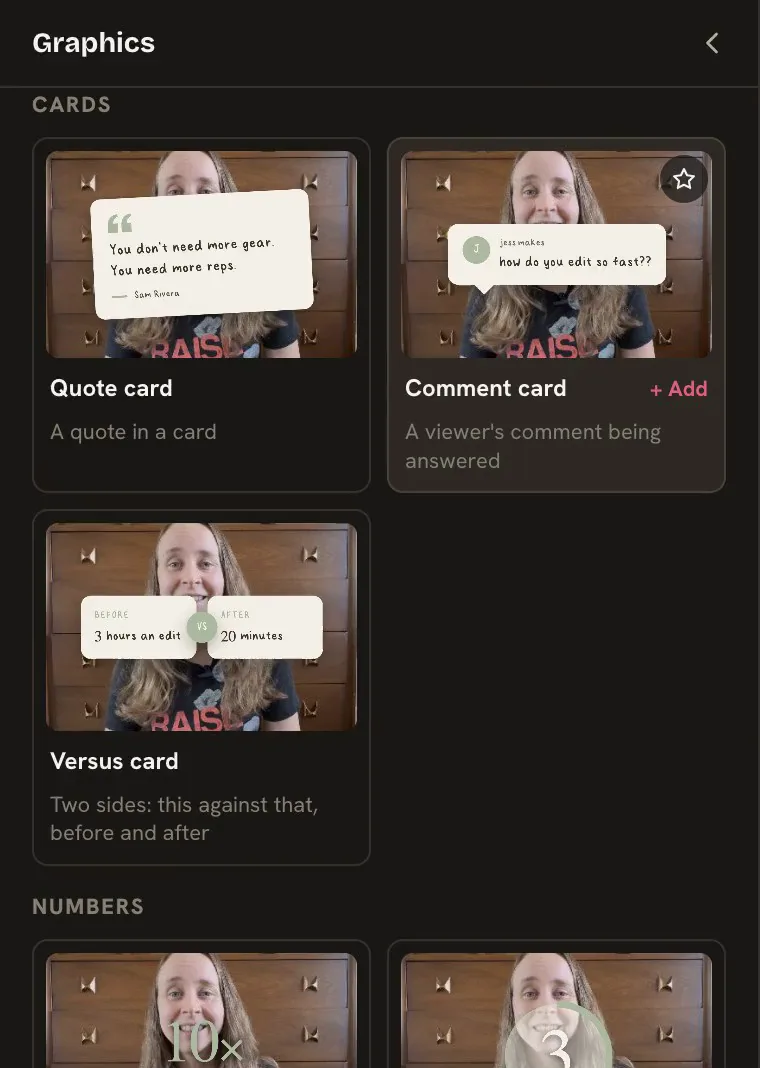
Open Graphics on the left rail and click one. Quote cards, counting numbers, charts, arrows, app screens, social cards and more, all drawn in your brand’s look.
Choose Graphics on the left rail. Search with Search graphics, or hover a tile to see it move.
Click a tile to add it at the playhead.
Click it on the picture and choose Edit text, or use the toolbar for the design’s own fonts, colors and pictures. More opens all its settings.
Clip coming soon
Built-in graphics.
The groups
Cards
Quote card
A quote in a card
Comment card
A viewer’s comment being answered
Versus card
This against that, before and after
Numbers
Big number
A stat that counts up
Countdown
Digits counting down, or a timer
Simple chart
Up to six bars that grow
Progress bar
How far through the video you are
Marks
Arrow
A hand-drawn arrow
Circle / underline
Drawn around or under something
Emoji pop
An emoji that pops in
Follow button
A + Follow button with your handle
Screens
Prompt bar
A chat bar types a prompt and sends it
Website scroll
A page slides up and scrolls
Falling keys
Keys rain down and pile on your head
Jiggle delete
App tiles jiggle and are deleted
Icon strike
App icons struck out one by one
Printed receipt
A printer above your head prints a line
Social
Comment keyword
Your keyword posts as a comment
Comment thread
Your note, and a reply slides back
Profile card
A profile with a picture and numbers
Social feed
A feed flicks past, then stops on your reel
Chapters
Title card
A full-frame chapter card
Intertitle
A silent-film title card
Screenplay page
Your lines as a script page
Magazine cover
A cover builds behind you
Chapter list
An “In this video” list
Your reel
Editing timeline
Your reel’s timeline builds up
Storyboard
Your clips dealt out as cards
Contact sheet
Your raw take, the cut frames circled
Drag and drop
Your raw file, stamped where it was cut
Color palette
The shot’s colors in a palette
Each look will play here as a short loop. Clips coming soon.
Falling keys, Printed receipt, Comment keyword and Intertitle follow your face. Your reel’s graphics are explained in Graphics that read your reel. Screenplay page stands in for your captions while it shows. Magazine cover starts behind you.
Or ask your agent
You
Add a Big number that counts up to 10,000 on the word "views".
Graphics that read your reel
Eight graphics draw from your own video: Editing timeline, Storyboard, Contact sheet, Drag and drop, Comment thread, Social feed, Title card and Color palette. Nothing to type or upload.
These graphics are made from your video itself. Editing timeline, Storyboard and Title card read your reel’s timeline. Contact sheet, Drag and drop, Comment thread and Social feed read the raw take under them: its length, what the edit kept and cut, and stills from it. Color palette reads the colors of the shot.
Editing timeline
Your reel’s real timeline building up, with a playhead sweeping across
Storyboard
Your first clips dealt out as numbered cards with their first words; the last one flips to take a sticky note
Contact sheet
A contact sheet of your raw take, with a pencil circling every frame the edit cut
Drag and drop
Your raw file dropped into a player, with stamps on the longest cut stretches
Comment thread
A card with a still of your reel; your note types out and a reply slides back
Social feed
A feed of other videos flicking past faster and faster, then braking on your reel
Title card
A full-frame chapter card with a title and your reel’s timecode
Color palette
An eyedropper pulls the shot’s own colors into a palette, with hex codes
Each look will play here as a short loop. Clips coming soon.
Open Graphics and find the graphic (most are in Your reel; Comment thread and Social feed are in Social; Title card is in Chapters).
Click to add it, then use More to change its settings, such as the number of cards in Storyboard or the note on a Comment thread.
Screenshot coming soon
A Contact sheet made from the raw take.
Change just one part of a graphic
Select the graphic, then click one of its parts on the picture (or pick it in the Parts list). Change its font, color, size or position, or delete the part.
Select the graphic on the picture.
Click one of its parts, such as the quote mark on a Quote card. Or open Parts in the right panel and click a row (hovering a row outlines the part).
A toolbar shows Font, Weight, Color and Size. Drag the part to move it, drag a corner to scale it, or use the dot above it to turn it.
Choose Delete part to remove it, or Show part to bring it back. Reset this part and Reset all parts undo your changes.
Choose Back in the toolbar to return to the whole graphic.
Clip coming soon
Editing one part of a graphic.
Or ask your agent
You
Make the quote mark on this card the brand’s accent color, and move the handle a little lower.
Graphics your agent writes
If no built-in does what you want, ask your agent to write one. It appears in Text or Graphics, marked "Made by your agent", and you can edit it like any other.
Or ask your agent
You
Make a graphic that shows three pills popping in on my words, in my brand colors.
Your agent writes it, Yapp Studio checks it, and it only appears once it passes.
After it is made
It shows up in the Text or Graphics panel with the label Made by your agent. Its tile menu (⋯) has Add at the playhead and Delete from this reel….
Its settings appear as normal fields in the right panel and in the toolbar on the picture.
Star it (Add to favorites) to keep a copy in every project.
If a graphic stops with an error, the right panel says so, and your agent can fix it.
Good to know
Graphics are drawn from the frame, so the preview and the export always match. They run in a closed sandbox with no network access, no timers and no storage, so a graphic cannot reach anything on your Mac. Your agent follows the rules in Yapp Studio’s skill.
Use the toolbar on the picture
Click a text, graphic, card or the captions on the preview and a toolbar appears right there with the settings you change most. Choose More for everything else.
See Simple view for how this lets you hide every panel.