Install the beta, connect your agent and make your first reel.
Download and install the Yapp Studio beta
Download the installer from yapp.studio/beta, drag Yapp Studio into Applications and open it. It needs a Mac with an M1 chip or newer, on macOS 14 or later.
Before you start
A Mac with an Apple silicon chip (M1 or newer). Intel Macs are not supported yet.
macOS 14 (Sonoma) or later.
About 1 GB of free space for the app and the one-time speech model.
A Windows version is on its way, but not done yet.
Install it
Go to yapp.studio/beta. If it asks for a password, enter the one you were given and choose Continue.
Choose Download for Mac. The file is called Yapp-Studio-<version>-arm64.dmg.
Open the downloaded file and drag Yapp Studio into Applications.
Open Yapp Studio from Applications. If your Mac asks whether you are sure you want to open it, choose Open.
Screenshot coming soon
The download page.
Yapp Studio is signed and notarized by Apple. The first time it opens, it asks you to agree to the Terms of Service and to acknowledge the Privacy Policy, then starts getting ready while you connect your agent.
If you open Yapp Studio straight from the downloaded file or the Downloads folder, it offers Move to Applications. Choose it: updates can only install from Applications.
The first open: Getting Yapp ready
The first time Yapp Studio opens, it downloads the speech model that writes your words (about 460 MB) once. A ring shows how far along it is, and you can connect your agent while it works.
What you will see
The welcome page says Welcome to Yapp Studio, with a card for Claude and one for ChatGPT.
Under the cards, a row reads Getting Yapp ready with a percentage, while the speech model downloads. It then says Almost done while your Mac prepares it.
When it is finished, the row says Yapp is ready with a tick for a few seconds, and goes away.
Screenshot coming soon
The ring row on the welcome page.
You do not need to wait. Connect your agent, or choose Skip for now, and carry on. Once the welcome page is done, a small pill at the top of the home screen and the editor shows the same progress. In a narrow editor the pill is just the ring.
If you add a video before it is finished
A take you add meanwhile shows Writing the words… Waiting for setup. Its words start by themselves as soon as setup is done. Words that were already written never wait.
If it stops
The row (or the pill) changes to Yapp isn't ready, says why in one sentence, and shows a small Retry button. See Fix "Yapp isn't ready".
Connect Claude or Codex to Yapp Studio
On the welcome page, choose Connect on your agent card. Yapp Studio adds its tools and editing skill to Claude, ChatGPT (Codex), or any agent you connect by hand.
Yapp Studio works from the desktop apps on your Mac: Claude’s and Codex’s. You cannot control it from claude.ai or Codex on the web, because its connection is local to your Mac.
Claude or ChatGPT
Open Yapp Studio. On the welcome page you will see a card for Claude and one for ChatGPT. Each says whether the app is on this Mac.
If an app is missing, the card says Not on this Mac yet. Choose Get Claude or Get ChatGPT, install it, and come back. Yapp Studio notices when you return.
Choose Connect. The button reads Connecting… for a moment.
On the Claude card you may then see Install in Claude. Choose it. Claude opens its own install screen for the Yapp Studio extension. Claude warns that the extension is not from its directory. That is expected for now: we are in the process of submitting Yapp Studio to Claude's official extension directory, and until it is listed there Claude shows this warning. Choose Install there.
The card changes to Connected ✓.
Screenshot coming soon
Agent cards on the welcome page.
Connecting only adds Yapp Studio's tools and its talking-head editing skill. Nothing is installed until you press the button, and you can remove them again from the agents panel.
Any other agent
Choose Use a different agent on the welcome page, or Connect any other agent in the agents panel. It shows the command that starts Yapp Studio's tools, and a Copy a prompt for your agent button. Paste the prompt into your agent and it registers a server named yapp_studio for you.
Check or change it later
On the home screen, the buttons under the drop area show each agent's state, and More agents opens the Edit with your agent panel. In the editor, the agents button in the header opens Edit this project with your agent (under a narrow width it is in the ⋯ menu). Each row has Open and Remove, or Retry if something failed.
Set up Yapp Studio with your agent
Choose Set up with your agent, then say "Set up Yapp Studio" in the new chat. Your agent asks a few short questions and saves how you like to edit.
Yapp Studio has no editing settings of its own. How your videos should feel lives in a short text called an editing skill, which your agent follows. Setting up is how you get your first one.
Set up in Claude’s or Codex’s desktop app on your Mac. Yapp Studio cannot be controlled from claude.ai or Codex on the web: its connection is local and works only from the desktop apps.
On the welcome page choose Set up with Claude (or ChatGPT). The home screen buttons, Edit with Claude and Edit with ChatGPT, do the same.
A new, empty chat opens. Type Set up Yapp Studio.
What your agent asks
If it finds an editing skill of yours, it offers to save it to your brand.
Otherwise it offers four starting points: Clean and simple, Fun and personality, Bold and high energy and Soft and story. Or you can build your own: it asks how fast it should feel, how much should pop up on screen, how captions should look and whether you want sounds or music.
It offers to put Yapp Studio in your brand’s colors (see Themes).
Or ask your agent
You
Set up my editing style.
You can say this any time, not only the first time. You can also stop part-way and your agent will not ask again unless you do.
Make your first reel
Drop a video on the home screen, wait a moment while the words are written, then edit in the window or ask your agent. Export when you are happy.
Start a project
On the home screen, drop a video on Drop a take or a voiceover here, or choose Choose a take….
The editor opens at once. Your video is copied into a new project, and the words are written on your Mac.
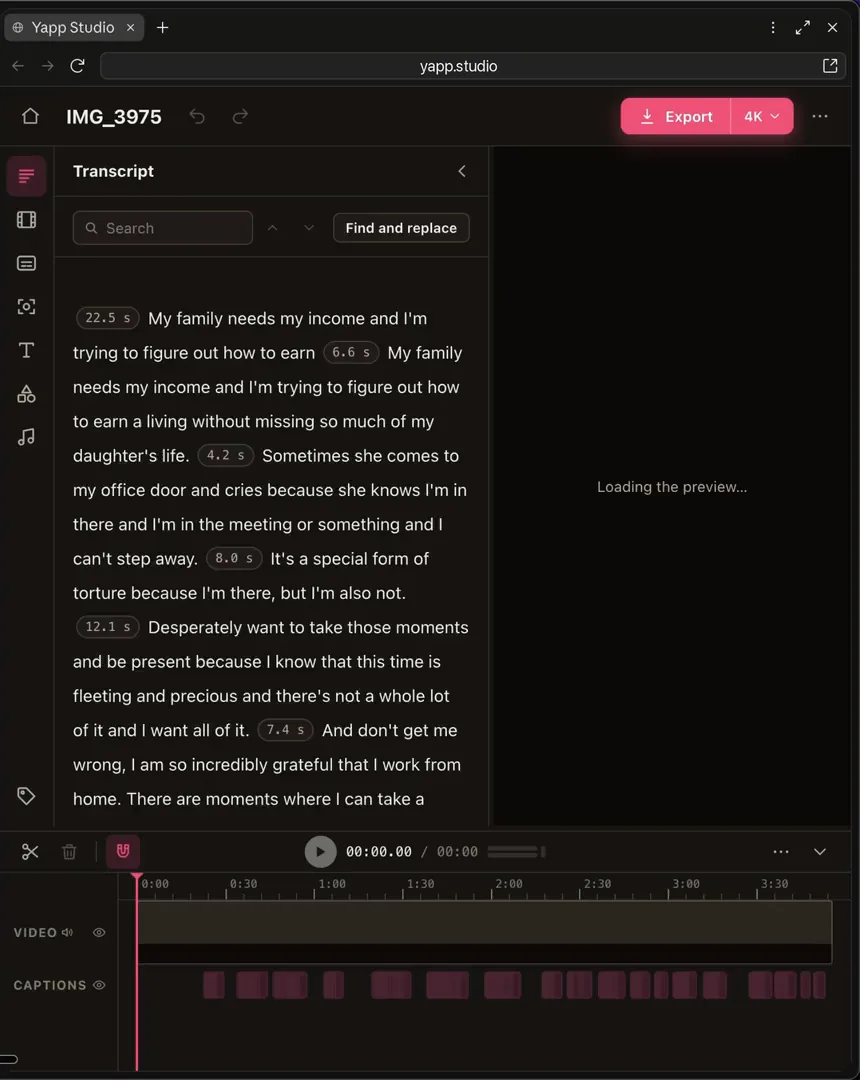
When the words appear in the Transcript panel, you can edit.
Screenshot coming soon
The home screen.
Videos can be .mov, .mp4, .m4v, .mkv, .mts, .m2ts, .avi, .webm or .3gp. A sound file (wav, mp3, m4a, aac, aif, aiff or flac) makes a voiceover video. Projects are saved in Movies/Yapp Studio. Your original file is not changed.
Edit it
In the window
Select words in Transcript and press Delete to cut them. Add captions from Captions, text from Text, and click anything on the picture to get a toolbar. See Edit by transcript.
Or ask your agent
You
Edit my project in Yapp Studio. Trim the pauses and filler words, add captions, and zoom in on the punchlines.
Your agent reads the project and your editing skill, shows you a plan, makes the edits and checks frames. You see every edit land, and you can undo it.
Yapp Studio checks for new versions by itself. When one is ready, an Update pill appears at the top of the window. Choose Restart to update when you are ready.
Yapp Studio looks for an update 30 seconds after it starts, then every few hours, and downloads it in the background.
When it is ready, an Update pill appears at the top of the window and on the home screen.
Choose it to read What’s new, then Restart to update. Choose Later to keep working.
After the restart, a panel shows what is new in the version you now have. Choose OK.
It never restarts on its own. If an export is running, restarting asks you first.
Check by hand
Choose Yapp Studio in the menu bar, then Check for Updates…. A message tells you if you are up to date, if a version is downloading, or if one is ready.