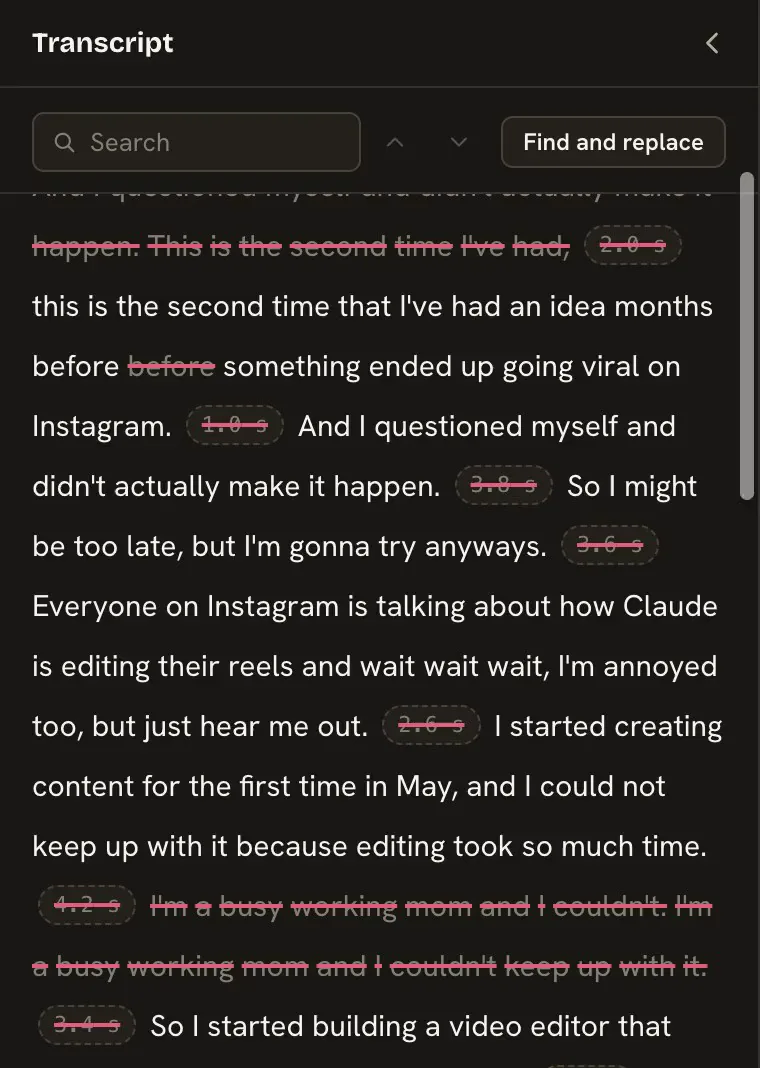
Open the Transcript panel, select the words you do not want and press Delete. The video is cut to match, and the words stay on the page, struck through, so you can bring them back.
Cut and restore
Choose Transcript on the left rail. Your words appear, in order.
Click a word to jump there and select it. Drag, or Shift-click, to select a run of words.
Choose Remove in the little bar above the selection, or press Delete.
To bring words back, click a struck word, or choose Restore. ⌘Z also brings them back.
Clip coming soon
Cut words stay on the page, struck through.
Cuts never land inside a word, and Yapp Studio keeps a little breathing room around the words you keep (about 0.05 seconds before a word and 0.08 after), so the voice never sounds clipped.
Do it with your agent
Or ask your agent
You
Cut the second take of the intro, and bring back the word "actually".
Your agent can also keep a whole pause after a word, or cut a run of words by quoting them.
Useful keys
Key
What it does
Space
Play and pause
J
Jump back 3 seconds and play, to hear the last bit again
K
Pause
L
Play
← →
One frame (with Shift, one second)
⌘F
Search the transcript
S
Split the clip at the playhead
⌘Z⇧⌘Z
Undo and redo
Trim pauses and filler words
In the window, click a pause chip in the Transcript to shorten that pause. To trim a whole take in one go, ask your agent: auto-trim shortens every pause and cuts the ums, and never cuts a pause to zero.
One pause at a time, in the window
Silences of half a second or more show in the Transcript as small chips, such as 0.7 s.
Open Transcript and find a chip between two words.
Click it. The pause is shortened to 0.25 seconds. It is not removed, so the speech stays natural.
Click it again to bring the full pause back.
The silence before your first word and after your last one has a chip too. Clicking it trims the start or end of the take.
A whole take at once, with your agent
Auto-trim is something your agent does for you. It only changes what the transcript shows.
Or ask your agent
You
Trim the pauses and the ums in this take.
It shortens each pause of half a second or more, cuts hesitation words (um, uh, er, ah), and opens on your first word and ends on your last.
Unless your editing skill or you say otherwise, pauses inside a sentence and between sentences both play at up to 0.25 seconds. Ask for a looser or tighter feel in plain words: "leave a bit more room between sentences".
Undo and restore
Auto-trim is one undo step. To bring something back, click the struck word or the struck chip, or ask: "keep the whole pause after 'so'".
Clip coming soon
Pauses shrink and fillers are struck through.
Fix a misheard word in your captions
Double-click the word in the Transcript (or in the captions on the preview), type the right text and press Enter. Only the caption changes, never what is said or when.
Double-click the word in the Transcript, or double-click it on the preview. Or select one word and choose Edit.
A field opens with the word selected. Type the right spelling.
Press Enter or click away to save. Esc cancels.
Screenshot coming soon
Editing the caption text for one word.
A fixed word shows a tooltip with what was originally said. To remove a fix, clear the field or type the spoken text again.
Or ask your agent
You
The name in the second sentence is spelled Yapp, with two Ps. Fix it in the captions.
Find and replace words in your captions
Press ⌘F in the Transcript, choose Find and replace, type what to find and what to put instead, then choose Replace all.
Open Transcript and press ⌘F. Type in the Search box to find matches. Next match and Previous match step through them.
Choose Find and replace. A box opens with Find and Replace with.
Choose Replace all.
Screenshot coming soon
Find and replace in the Transcript.
Good to know
It changes the caption text only. The audio and timing stay as spoken.
It matches text exactly as typed, in any case, even inside a longer word. A whole-word option is not done yet.
It also fixes words you have cut, so a restored word keeps its fix.
If your replacement has fewer words, the extra words are left out of the captions but still play. They show faintly in the Transcript. Double-click one to bring it back.
It is one undo step.
Or ask your agent
You
Change "Yap" to "Yapp" everywhere in the captions.
Edit a long take
Hour-long takes work like short ones. The Transcript shows only what is on screen, and your agent reads a long take in pages, so edits and scrolling stay quick.
You do not need to do anything different. Behind the scenes:
The Transcript is split into paragraphs of about 250 words, and only the screen you are on (plus a screen either side) is drawn.
Cutting a word on a very long take answers at once.
Your agent reads a long take a page at a time, and searches for a phrase to find the part you mean.
Or ask your agent
You
Find where I talk about pricing in this take and cut everything before it.
Turn a take’s words off for B-roll
If a take has no speech, such as B-roll, open its page in Media and choose Remove words. It stays fully editable without words.
Select the take in Media to open its page.
Choose Remove words. The page now shows No words and a Transcribe button, in case you change your mind.
A take with no words is cut on the main track, where splits and trims land exactly where you ask. Word edits add a little breathing room; edits on the timeline do not.