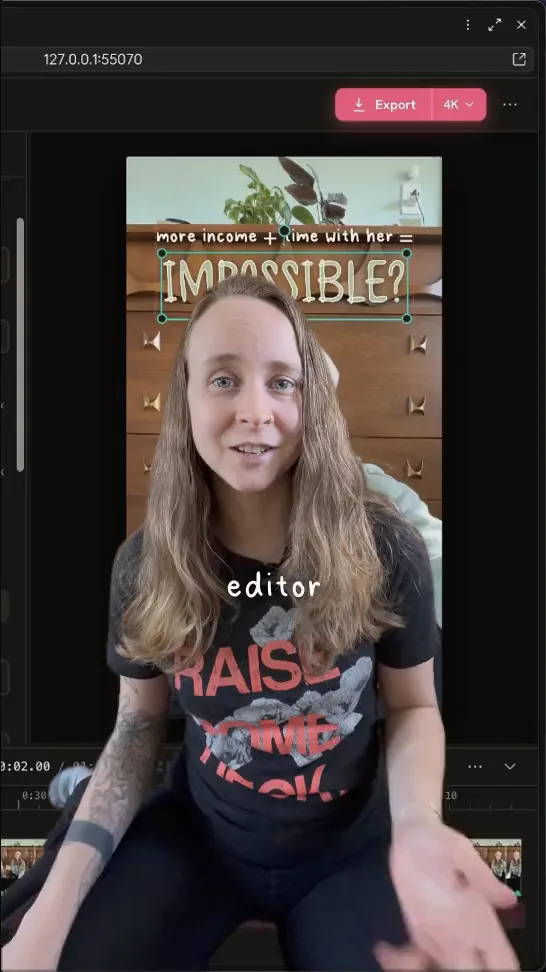
Drop a picture, GIF or clip on the preview. It becomes a card over your video, at the playhead, and you can restyle it with a look.
A card is a picture, GIF or clip shown over your video. It sits on an Overlays track, and a new one goes under your text, graphics and captions.
Drop a file on the preview. The card is added at the playhead, where you let go.
Or open Media, choose Add videos and pictures, then use the + on a tile (Add at the playhead). On a video tile’s page, choose Put over your video.
Or drag the file, or a tile from Media, onto the timeline above the main track. It lands on the Overlays track under the pointer, or on a new track where a line says New overlays track.
Click the card on the picture. Drag it to move it. Change its look in the toolbar or in the right panel under Style.
Clip coming soon
Dropping a picture on the preview.
A picture or GIF lasts 3 seconds when you add it, or up to the end of the reel if that comes sooner. A clip lasts as long as the clip. Your agent can give a card another length, or lay it over the words you name. A normal picture starts as a Card, and a see-through picture (a logo) starts as a Sticker. Cards come in with Pop and leave with Shrink; you can change both under Motion.
Or ask your agent
You
Put this screenshot on a Phone card when I say "DM".
Card looks: Card, Framed, Phone, Circle, Sticker and more
A look is how a card is dressed. There are ten: Card, Framed, Phone, Circle, Sticker, Full screen, Player, Split screen, Wall and Grid. Pick one in the toolbar’s Look menu or under Style in the right panel.
Card
Anything: rounded corners and a soft shadow
Framed
A photo with a printed border
Phone
A screenshot inside a simple phone
Circle
A face or a reaction
Sticker
A see-through logo or cut-out
Full screen
A cutaway that fills the frame
Player
A clip shown as a video, with a play button
Split screen
Your picture in one half, you in the other
Wall
Many pictures or clips filling the frame
Grid
Several clips playing at once in a grid
Each look will play here as a short loop. Clips coming soon.
Look
Its settings
Card
Corners, Shadow
Framed
Border width and color, Corners, Shadow
Phone
Phone color (Black or White), Handheld, Shadow
Circle
Border width and color, Shadow
Sticker
Outline width and color, Corners, Shadow
Full screen
None
Player
Corners, Shadow, Controls color
Split screen
Side, Divider, Move you, Move captions
Wall
Layout, Speed, Stagger, Numbers, Corners, Shadow
Grid
Columns, Gap, Corners
Worth knowing
Phone, Handheld tilts the phone a few degrees and sways it gently, as if held at your chest.
Player: the play button presses once after the card comes in, and a line shows where the clip is.
Split screen: with Move you on, your picture moves so your face sits in the free half. With Move captions on, captions center on the dividing line. Switch either off to keep things where they were. A Blur area covering a face can slide out from under its blur, so switch Move you off there.
Wall holds 1 to 12 pictures or clips: Straight drifts them up like a feed, Scattered tilts them around your head. Grid holds 1 to 9, in 2 or 3 columns. Their clips play silent and loop.
Full screen, Split screen, Wall and Grid set their own place, so they have no Position or Size.
Or ask your agent
You
Make a Wall of these six posts, scattered, with numbers.
Replace or crop a card
Select the card and choose Replace in its toolbar to swap the picture or clip, keeping its look, place and timing. Choose Crop to trim the picture.
Replace
Select the card on the picture.
Choose Replace in the toolbar (or Replace… in the right panel under Picture).
Search, or pick from In this reel (a take’s video too), Favorites or From your Mac….
It is one undo step.
Crop
Choose Crop in the toolbar, or double-click the card.
Drag the crop on the preview. Choose a ratio: Free, Original, 1:1, 4:5, 9:16 or 16:9.
Choose Done, or Cancel. Reset starts over.
More on the card’s page
Under Picture you will also find Opacity and Blend (16 modes, from Normal to Luminosity). A clip card with sound has Mute in its toolbar and a Sound section: Volume, fades, and Lower under the voice, which is on by default.
Clip coming soon
Replace, then crop.
Add B-roll
B-roll is a clip or picture shown over your talking. Put it over your video as a card, make it Full screen for a cutaway, and ask your agent for free stock footage if you have none.
Add your clip to the project with Add videos and pictures in Media, or drop it on the preview.
Select it, choose Look and pick Full screen so it fills the frame, or leave it as a card to keep the speaker visible.
A clip with sound plays it under your voice, and turns up in the gaps. Choose Mute to silence it.
The preview and the export play your original files, so the picture looks like the original.
No footage? Ask your agent for stock
Or ask your agent
You
Add stock footage of a coffee being poured when I say "morning". Tell me the license.
Your agent finds free-license files (Pexels, Pixabay, Unsplash) and brings them in with the license and credit the site asks for.
A stock card’s page shows where it came from and the credit to give.